A developer at a startup I advised was saving every image on their website as PNG. Product photos, blog images, user avatars, background graphics — all PNGs. Their homepage loaded 14 MB of images. When I asked why not JPEG for photos and SVG for icons, he said: "PNG just works for everything." He wasn't wrong technically — PNG does work everywhere — but he was paying a massive performance penalty. After converting photographs to WebP and icons to SVG, the same homepage loaded 2.1 MB of images. Same visual quality, 85 percent smaller. Page load time dropped from 6 seconds to 1.4 seconds.
Every image format exists because it solves a specific problem. JPEG was designed for photographs. PNG was designed for graphics with transparency. WebP was designed to replace both with better compression. SVG was designed for resolution-independent vector graphics. Understanding what each format does well — and what it sacrifices to get there — lets you choose the right format for every situation and avoid the common mistakes that bloat websites, degrade quality, and frustrate users.
This is the complete reference guide. Every major image format, explained in plain language, with practical guidelines for when to use each one.
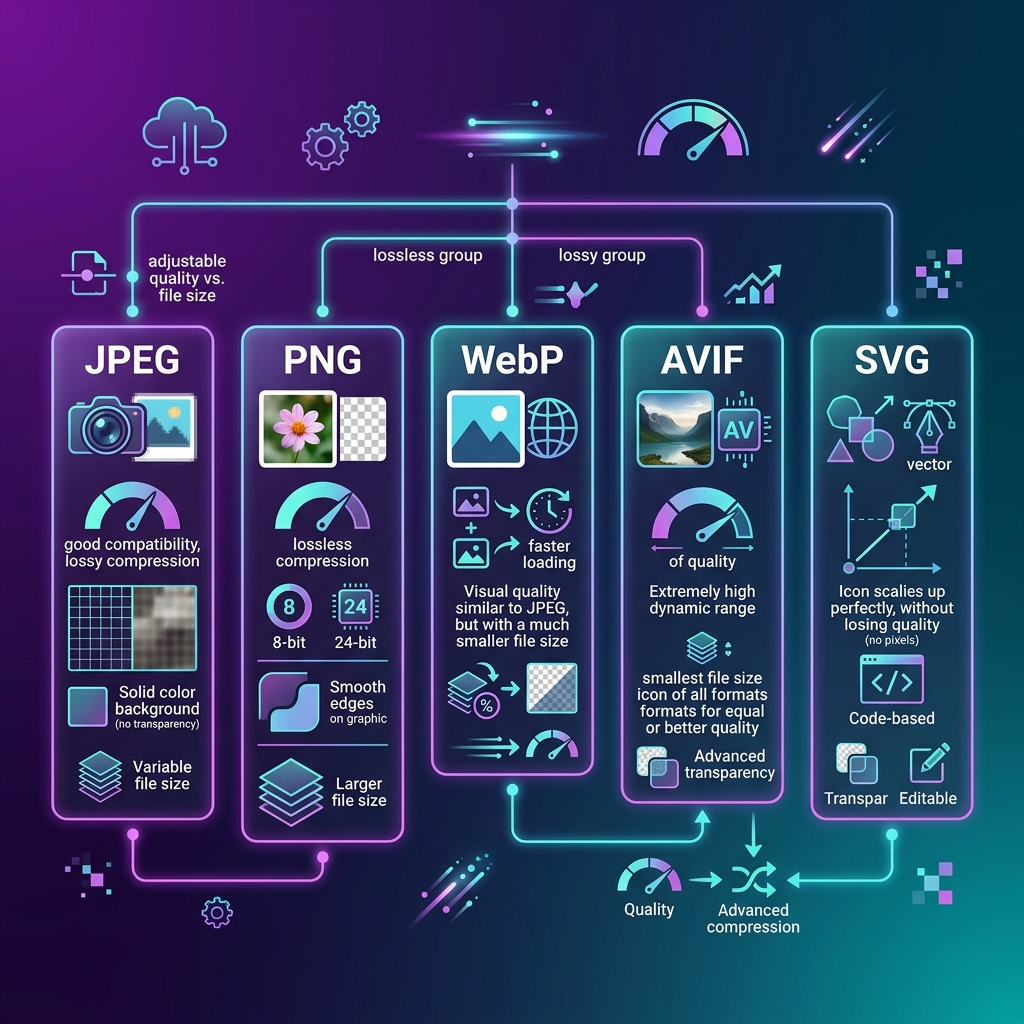
Quick Comparison Table
| Format | Type | Compression | Transparency | Animation | Best For |
|---|---|---|---|---|---|
| JPEG | Raster | Lossy | No | No | Photos |
| PNG | Raster | Lossless | Yes (alpha) | APNG | Graphics, screenshots |
| WebP | Raster | Both | Yes (alpha) | Yes | Web images (all types) |
| AVIF | Raster | Both | Yes (alpha) | Yes | Next-gen web images |
| GIF | Raster | Lossless* | Yes (1-bit) | Yes | Simple animations |
| SVG | Vector | N/A | Yes | Yes (CSS/JS) | Logos, icons, UI |
| HEIC | Raster | Lossy | Yes | Yes | Apple device photos |
| TIFF | Raster | Both | Yes | No | Print, archival |
JPEG (Joint Photographic Experts Group)
The most widely used image format on the internet, accounting for roughly 73 percent of all web images. JPEG was designed specifically for continuous-tone photographic images, and it excels at that purpose.
How it works: JPEG uses lossy compression that exploits the human eye's limited sensitivity to color changes. It discards visual information that most people can't perceive, resulting in dramatic file size reduction. A quality slider (0-100) controls how aggressively data is discarded.
Strengths: Universal compatibility (literally every device and application), excellent compression ratios for photographs (typically 10:1 to 20:1 with good quality), and decades of optimization making it incredibly efficient. Use our Image Compressor to optimize JPEG files.
Weaknesses: No transparency support, lossy compression means quality degrades with each re-save, and visible artifacts on hard edges (text, logos, line art). JPEG handles gradual color transitions beautifully but struggles with sharp boundaries.
Use when: Photographs, product images (without transparency), blog images, social media posts, email images. For more details on compression, see our Lossless vs Lossy Compression Guide.
PNG (Portable Network Graphics)
PNG was created in 1996 as a patent-free replacement for GIF. It uses lossless compression, meaning the image quality is identical before and after compression — no data is ever discarded.
How it works: PNG uses the DEFLATE algorithm (a combination of LZ77 and Huffman coding) to reduce file size without any quality loss. It supports full alpha channel transparency with 256 levels of opacity per pixel — meaning pixels can be fully transparent, fully opaque, or anywhere in between.
Strengths: Lossless quality, full transparency support, excellent for graphics with solid colors and sharp edges, universally supported, and safe for repeated editing (no quality degradation on re-save).
Weaknesses: Much larger file sizes than JPEG for photographic content (typically 5-10x larger), no native animation support (APNG exists but has limited support). PNG is overkill for photographs where JPEG provides visually identical quality at a fraction of the size.
Use when: Images requiring transparency (logos on colored backgrounds, product cutouts, overlays), screenshots with text, graphics with sharp edges and solid colors, any image that will be edited multiple times. Use our JPG to PNG converter when you need transparency.
WebP
Google's image format, launched in 2010 and now supported by all major browsers. WebP was designed to replace both JPEG and PNG with better compression for each use case.
How it works: WebP supports both lossy compression (based on VP8 video codec technology) and lossless compression. In lossy mode, it achieves 25-34% smaller files than JPEG at equivalent visual quality. In lossless mode, it achieves 26% smaller files than PNG.
Strengths: Significantly better compression than JPEG and PNG, supports transparency (unlike JPEG), supports animation (unlike PNG), and has full browser support in 2026 including Chrome, Firefox, Safari, and Edge.
Weaknesses: Slightly slower to encode/decode than JPEG, some older software and email clients still don't support it, and the quality advantage over JPEG at high quality levels (90%+) is minimal.
Use when: Web images where you want the best balance of quality and file size. WebP is the current best practice for web performance optimization. If you can serve WebP, you should.
AVIF (AV1 Image File Format)
The newest major format, based on the AV1 video codec developed by the Alliance for Open Media. AVIF offers the best compression efficiency of any current image format.
How it works: AVIF uses the sophisticated intra-frame coding tools from the AV1 video codec to compress still images. It supports 10-bit and 12-bit color depth (versus JPEG's 8-bit), HDR content, and wide color gamut.
Strengths: 50% smaller files than JPEG at comparable quality, better compression than WebP in most tests, supports transparency, HDR, and wide color gamut. Image quality at low bitrates is dramatically better than JPEG — where JPEG shows blocky artifacts, AVIF produces smooth, clean results.
Weaknesses: Encoding is slow (significantly slower than JPEG or WebP), browser support is good but not yet universal (Safari added full support in 2023, but some edge cases remain), and the format is still relatively new.
Use when: Websites targeting modern browsers where maximum compression is critical. Best served with a fallback: serve AVIF to browsers that support it, WebP as fallback, JPEG as final fallback.
GIF (Graphics Interchange Format)
The granddaddy of web images, created in 1987. GIF's claim to fame is animation — it's the simplest way to display a looping animation on the web.
Strengths: Universal support, simple animation, ubiquitous in messaging and social media. Every platform, app, and browser supports GIF.
Weaknesses: Limited to 256 colors (from a palette of 16.7 million), which causes visible color banding in photographic content. Only supports 1-bit transparency (fully transparent or fully opaque, no semi-transparency). Animation files are enormous compared to video formats.
Use when: Simple, short animations for social media and messaging. For longer or higher-quality animations, use WebP, AVIF, or video formats (MP4) instead.
SVG (Scalable Vector Graphics)
SVG is fundamentally different from all other formats on this list. While JPEG, PNG, WebP, and AVIF store images as grids of colored pixels (raster), SVG stores images as mathematical descriptions of shapes (vector).
Strengths: Infinite scalability with zero quality loss, tiny file sizes for simple graphics, can be styled with CSS and animated with JavaScript, text within SVGs is selectable and searchable, and supports accessibility through built-in title and description elements. See our SVG vs PNG Guide.
Weaknesses: Cannot represent photographic content. Complex illustrations with many paths produce larger files than raster equivalents. Potential security concerns with embedded scripts in untrusted SVG files.
Use when: Logos, icons, illustrations, charts, diagrams, and any graphic designed with vector tools.
HEIC (High Efficiency Image Container)
Apple's default photo format since iPhone 7 (2016). HEIC uses the HEVC (H.265) video codec for still image compression.
Strengths: Approximately 50% smaller files than JPEG at equivalent quality, supports live photos, depth maps, and auxiliary data. If you have an iPhone, your photos are likely already in HEIC format.
Weaknesses: Poor support outside the Apple ecosystem. Windows requires an extension, many web platforms don't accept HEIC uploads, and Android support is inconsistent. See our HEIC to JPG Conversion Guide.
The practical format decision tree for 2026: SVG for vector graphics. AVIF with WebP fallback for web photos (if you can implement format negotiation). WebP for web photos (if you want simplicity). JPEG for maximum compatibility. PNG for transparency needs. Convert everything else to one of these.
Choosing the right image format isn't about picking one and using it for everything — it's about matching the format to the content type and delivery context. Photos get JPEG or WebP. Graphics with transparency get PNG or WebP. Icons and logos get SVG. Performance-critical web images get AVIF with fallbacks. Get this right, and your images will be sharp, fast-loading, and compatible everywhere they need to be.
Convert Between Any Image Format
Use our free tools to convert between JPEG, PNG, WebP, and more. Compress, resize, and optimize for any platform — instantly, no signup required.
Explore All Image Tools →