I have a friend who shoots weddings professionally. After every event, she comes home with a memory card containing somewhere between 3,000 and 5,000 images. Every single one of them named something like DSC_0001.NEF, DSC_0002.NEF, and so on. She has folders from six years of shooting — roughly 400,000 images — and she cannot find anything without scrolling through endless thumbnails because the filenames tell her absolutely nothing about the content.
Last winter, she finally snapped. She spent an entire weekend renaming files by hand — clicking, typing, clicking, typing — and managed to get through about 2,000 images in two days before giving up. That's when she called me. I showed her how to batch rename files in about 30 seconds per folder using tools she already had on her computer. She was genuinely angry that she hadn't known about it sooner.
Bulk renaming image files is one of those tasks that seems simple but has surprisingly deep implications for productivity, searchability, SEO, backup organization, and professional workflow. This guide covers every method — from built-in OS tools to command-line scripts to dedicated applications — so you can pick the approach that fits your situation.
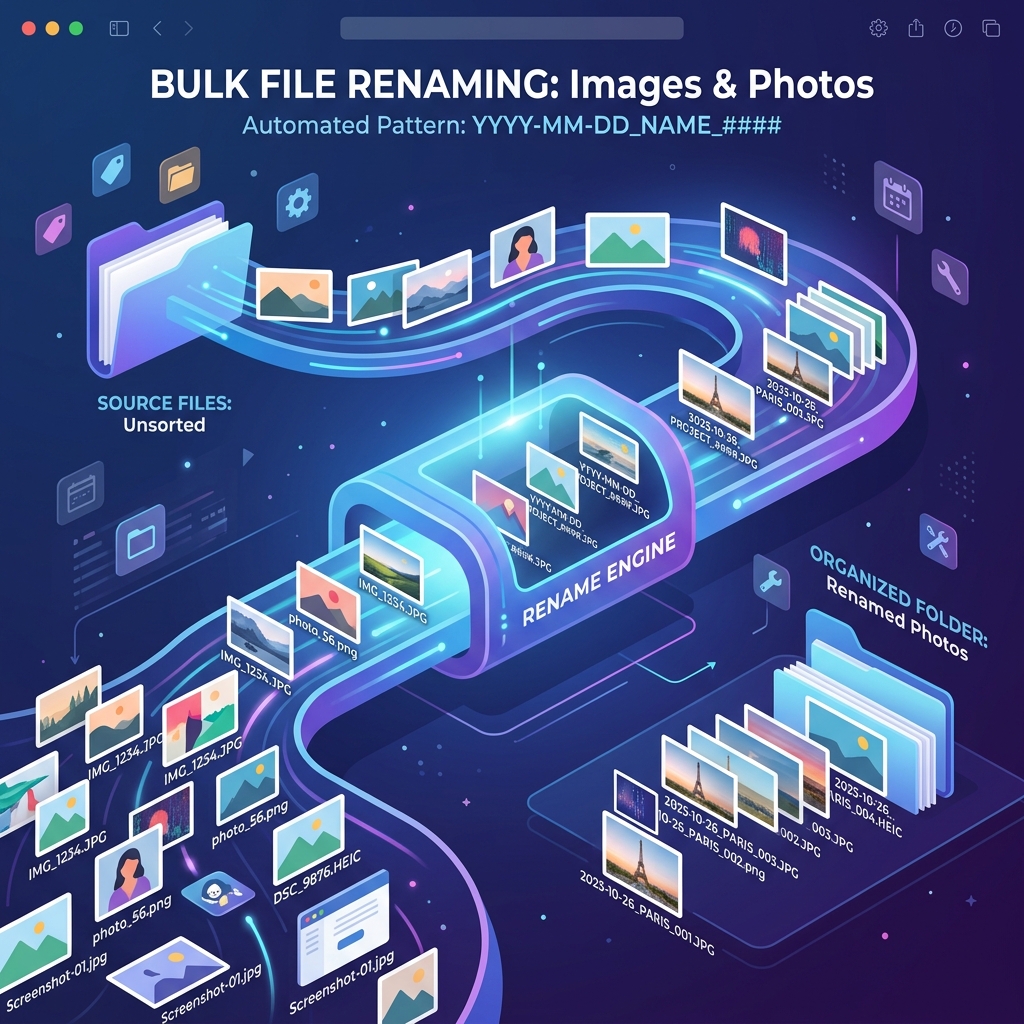
Why File Naming Matters More Than You Think
Most people treat filenames as throwaway text. The camera assigns a name, the phone assigns a name, and nobody changes it. But filenames serve several critical functions that become apparent only at scale:
- Searchability: Operating systems index filenames. If your vacation photos are named "IMG_4832.jpg" through "IMG_4900.jpg," you cannot find them by searching. If they're named "hawaii-beach-sunset-2026-001.jpg," a simple search for "hawaii" returns exactly what you need.
- Sort order: When files are named with dates or sequential numbers, they sort chronologically in any file manager without needing to sort by date metadata. This is especially important when sharing files with clients or collaborators who may have different sorting preferences.
- SEO: Search engines use image filenames as a signal for understanding content. An image named "red-leather-handbag-front-view.jpg" ranks better in Google Image Search than "IMG_20260115_143022.jpg." If you manage a website with hundreds of product images, proper filenames directly affect organic traffic.
- Backup integrity: When you merge photos from multiple cameras or phones into a single backup, generic names like "photo.jpg" cause conflicts. Descriptive names eliminate overwrite risks.
Method 1: Windows File Explorer (Built-in)
Windows has a basic but functional bulk rename feature that most people don't know about. Select all the files you want to rename (Ctrl+A or click-drag), then press F2 or right-click and choose "Rename." Type your new base name — for example, "vacation-hawaii" — and press Enter. Windows automatically appends sequential numbers: vacation-hawaii (1).jpg, vacation-hawaii (2).jpg, vacation-hawaii (3).jpg, and so on.
The limitation: you get zero control over the numbering format, starting number, or separator style. The parentheses format with spaces is ugly and can cause issues with web URLs. For anything beyond basic sequential renaming, you need a more powerful tool.
Method 2: PowerShell on Windows
PowerShell gives you complete control over naming patterns. Here's a script that renames all JPGs in a folder with a custom prefix, date, and zero-padded sequential number:
$counter = 1
Get-ChildItem -Path "C:\Photos\Hawaii" -Filter "*.jpg" | Sort-Object LastWriteTime | ForEach-Object {
    $newName = "hawaii-2026-{0:D4}.jpg" -f $counter
    Rename-Item $_.FullName -NewName $newName
    $counter++
}
This produces: hawaii-2026-0001.jpg, hawaii-2026-0002.jpg, hawaii-2026-0003.jpg — clean, sortable, and web-friendly. You can modify the pattern to include dates from the file's EXIF data, the camera model, or any other metadata field.
Method 3: macOS Finder (Built-in)
Apple's Finder has a surprisingly capable batch rename feature. Select your files, right-click, and choose "Rename X Items." You get three modes: Replace Text (find and replace within existing names), Add Text (append or prepend text), and Format (completely new names with sequential numbers or dates). The Format mode is the most useful — you can set a custom name, choose between Name and Index or Name and Counter, and specify the starting number.
Method 4: Command Line (Linux/Mac Terminal)
For Linux and Mac users comfortable with the terminal, a simple bash loop handles bulk renaming elegantly:
cd /path/to/photos
counter=1
for file in *.jpg; do
    mv "$file" "beach-vacation-$(printf '%04d' $counter).jpg"
    counter=$((counter + 1))
done
For more complex patterns, the rename command (available via Homebrew on Mac or built into most Linux distributions) supports regular expressions. Renaming all files to lowercase, replacing spaces with hyphens, and removing special characters takes a single command.
Naming Conventions That Actually Work
After helping dozens of photographers, marketers, and web developers organize their image libraries, I've landed on a naming convention that works universally:
[category]-[description]-[date]-[sequence].[extension]
Example: product-leather-wallet-brown-20260629-001.jpg
- Use hyphens, not spaces or underscores. Hyphens are the most URL-friendly separator and work identically across Windows, Mac, Linux, and web servers.
- Use lowercase only. Mixed case causes issues on case-sensitive file systems (Linux, most web servers). Consistent lowercase eliminates an entire category of bugs.
- Include dates in YYYYMMDD format. This format sorts chronologically when sorted alphabetically. ISO 8601 is the global standard for a reason.
- Zero-pad sequential numbers. Use 001 instead of 1 so that files sort correctly (otherwise, "10" sorts before "2" in alphabetical order).
- Keep names under 50 characters. Long filenames get truncated in file managers, emails, and some web platforms. Be descriptive but concise.
Common Mistakes When Bulk Renaming
- Not making a backup first. Bulk renaming is irreversible in most tools. If your script has a bug, you lose all original filenames. Always copy the folder before renaming.
- Using special characters. Ampersands, apostrophes, parentheses, and hash symbols cause problems in URLs, shell scripts, and some operating systems. Stick to letters, numbers, and hyphens.
- Forgetting about file extensions. Some renaming tools will happily rename "photo.jpg" to "photo-001" without the extension, making the file unopenable. Always preserve or explicitly include the extension.
- Not testing on a small batch first. Before renaming 10,000 files, test your pattern on 5-10 files in a separate folder. Verify the output names are exactly what you expect.
Process Your Renamed Images
After organizing your files, use our free tools to compress, resize, or convert your images for web, social media, or print.
Explore All Image Tools →